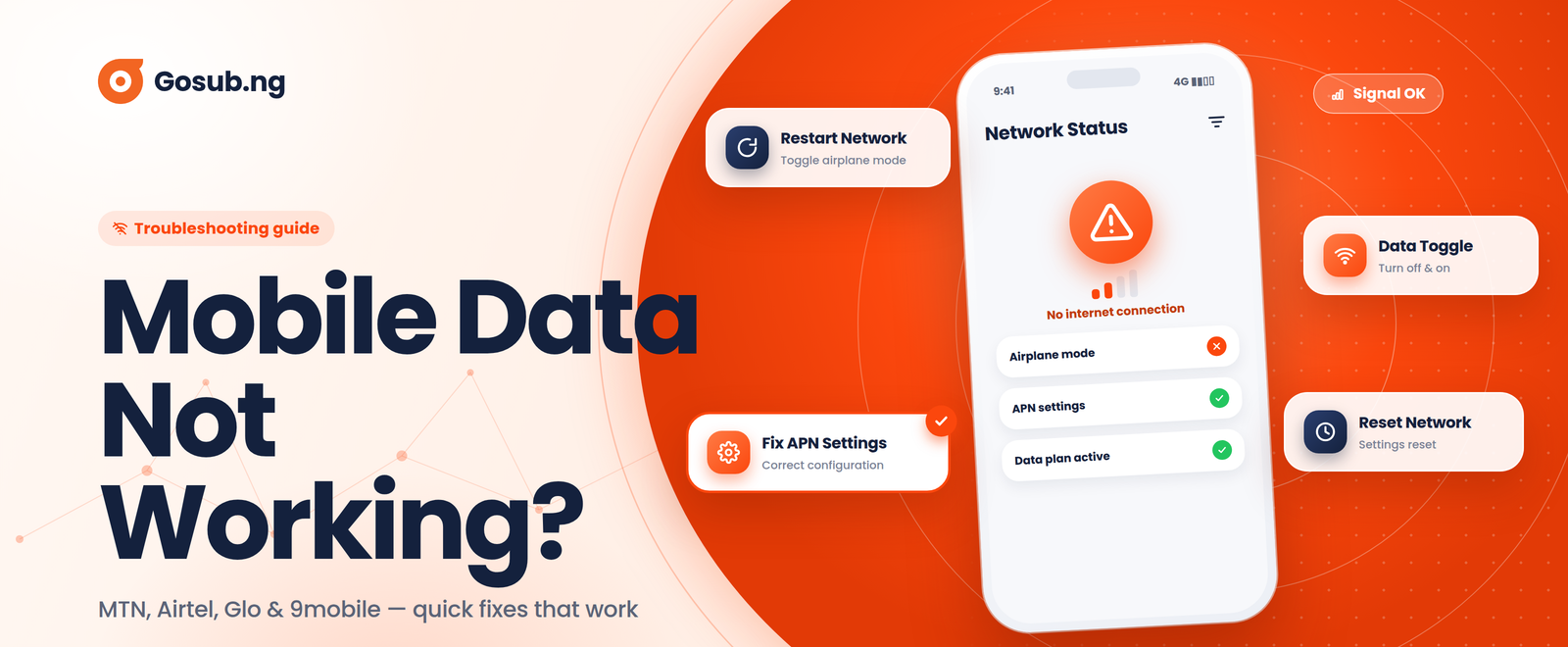
MTN, Airtel, Glo or 9mobile/T2 Mobile Data Not Working? Here's How to Fix It
Last updated: 25th September 2026
Picture this:
You're in the middle of a heated WhatsApp argument, or maybe you're about to send a hot take on X (Twitter). You hit send... and there it is. The dreaded spinning circle of doom.
You check your top bar. Full bars! 4G (or even 5G) is boldly flexing on your screen.
You dial your data balance code. You still have 3.5GB left!
So why is Instagram refusing to refresh? Why is Google acting like it went on strike?
At this exact moment, the natural Nigerian instinct kicks in:
"MTN has started their rubbish again."
"Airtel has scam me."
"Glo... well, it's Glo."
Hold on! Before you aggressively flip your phone into Airplane Mode for the tenth time, throw your phone at the pillow, or rush to buy a fresh data top-up, take a deep breath.
Your network operator might actually be innocent this time.
Mobile data is like a complex expressway. Just because you have a car (data) and a road (4G signal) doesn't mean a fallen tanker (phone settings or app crashes) isn't blocking your way.
Here is how to figure out what's actually happening, how to fix it in under 60 seconds, and how to stop burning money on data you don't need to buy.
Step 1: The 15-Second "Sanity Test"
When your internet goes silent, don't start tweaking random settings yet. Run this lightning-fast diagnostic test first:
The App Switch: If WhatsApp isn't working, open Chrome and try loading a random site (like Wikipedia).
The Test Ping: Send a simple text message in a group chat.
Scenario A: Google opens instantly, but Instagram won't load? The network is fine. Instagram's servers are likely down, or the app needs an update.
Scenario B: Nothing works, but your 4G icon is bright and clear? You have a signal vs. data path issue.
Scenario C: Everything is loading, but at the speed of a snail crawling through melted pitch? You're dealing with network congestion.
Is It Your Phone, SIM or the Network?
| What you notice | Possible cause |
|---|---|
| One app doesn't work | App/server problem |
| All apps don't work | Data/network/settings |
| 4G disappears | Coverage/network mode |
| Works near window | Indoor signal issue |
| Works on another phone | Phone/SIM/device configuration |
| Other people on same network also have problems | Possible network-side issue |
| Data balance is zero | Bundle exhausted |
What's Really Glitching? Network-by-Network Reality Check
Let's break down what is usually happening behind the scenes for each major provider and how to fix it without losing your mind.
1. MTN: The "Ghost Data" Mystery
You just bought 5GB yesterday, but MTN is telling you that you're browsing on pay-as-you-go airtime. What gives?
The Priority Trap: MTN allows you to hold multiple data bundles at once (Bonus data, YouTube night data, Main data). MTN automatically consumes the bundle with the shortest validity first. If that short-term bonus expires mid-browse, your phone gets temporarily locked out until it shifts to the main bundle.
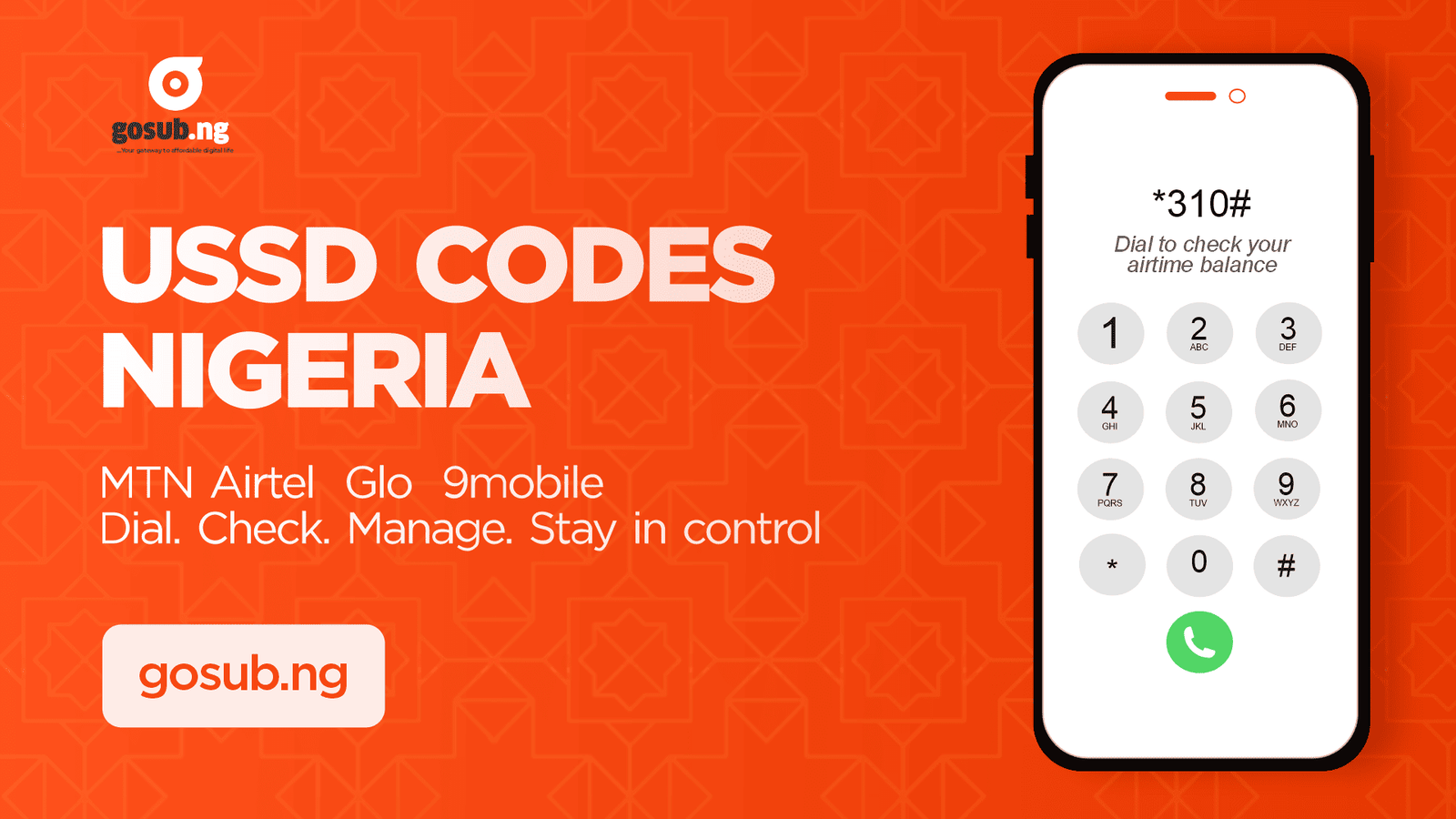
Quick Fix: Dial *323*4# or *310#, text 2 to 323, or check the myMTN app to see your available data bundles and balances.
The APN Check: If your balance is fine, make sure your APN (Access Point Name) hasn't been corrupted. It should always be: web.gprs.mtnnigeria.net. (You can auto-reset this by texting SETTINGS to 3888).
2. Airtel: The "Social Bundle" Illusion
Airtel's 4G is ridiculously fast when it works, but it has a very specific trap that catches people off-guard.
The Bundle Misunderstanding: Did you accidentally buy a "Social Bundle" or "Instagram/TikTok Package"? If yes, your WhatsApp and TikTok will zoom like a sports car, but the second you open Chrome to search for something, internet access will drop dead.
The Quick Fix: Dial *323# to audit your active subscriptions. Ensure you actually have a General Browsing plan active.
The APN Check: Airtel's official APN setting is Internet.ng.airtel.com (leave Username and Password blank). Or text Internet to 232 for auto-configuration.
3. Glo: The "Location Switch" Conundrum
We all joke about Glo, but when you are near a functional Glo mast, their data rates are unbeatable. The problem? Glo is super sensitive to the physical environment.
Location and indoor coverage: Mobile signals can become weaker indoors, especially inside buildings with thick walls, metal structures or coated/bullet-resistant glass.
The Quick Fix: Walk outside or near a window for 10 seconds. If your messages suddenly drop in like a flood, your line isn't broken you just hit a physical dead zone.
4. 9mobile/T2 Mobile: Data Is Active but the Internet Isn't Working
Your 9mobile/T2 Mobile data balance can show available data while websites and apps still refuse to load. Before assuming the network is down, run through a few quick checks.
Check Your Data Balance: First, confirm that your data bundle is still active and hasn't expired. Use the network's current official balance-check option or app to verify your remaining data.
Check Your Data Settings: If you use two SIMs, make sure 9mobile/T2 Mobile is selected as the SIM for mobile data. Also check that Mobile Data is switched on and that your phone isn't restricted from using cellular data.
Check Your Network Mode: If your phone is stuck on a weak or unsuitable network mode, try switching between the available network modes in your phone's settings. If 4G is available and stable in your area, selecting an appropriate 4G/5G-compatible mode may improve your connection.
Check Your APN: Incorrect or altered APN settings can prevent mobile data from working even when your phone shows network bars. If you've recently changed your APN settings, restore the network's current official configuration rather than copying settings from an old forum post.
Try a Different Location: Move closer to a window or step outside and test the connection again. If data starts working, the problem may be related to local coverage or indoor signal conditions.
Test Another Website or App: If WhatsApp isn't working, try opening Chrome or another website. If other services work normally, the problem may be with the particular app or service rather than your 9mobile/T2 Mobile connection.
If your data balance is active, your settings are correct, and the problem continues across different locations and apps, there may be a temporary network-side issue. In that situation, check the network's official support channels for service updates or assistance.
"But My Phone Says 4G! Why Isn't It Working?!"
Think of the 4G icon as the speed limit sign on an expressway.
Seeing a "120 km/h" sign on the Third Mainland Bridge doesn't mean there isn't a massive traffic jam 200 metres ahead. The 4G icon tells you that your phone has established a mobile network connection, but it doesn't guarantee that the internet connection is fast, uncongested or working normally.
Traffic jams on mobile networks happen when:
Tower Congestion: Many users in your neighbourhood are all trying to stream live football at the same minute.
Background Data Vampires: Your phone is quietly downloading a 2GB System Update in the background while you're trying to send a 50KB email.
Pro Tip: Go to your phone's Data Usage settings and check which apps have consumed the most mobile data. You might be surprised to find that Google Photos, TikTok, video apps or system updates have used a significant amount of data while your phone was sitting face down on your desk.
What NOT to Do When Your Data Acts Up
When panic sets in, avoid doing these common mistakes:
Don't start copying random APN settings from 2016 forum threads. Outdated configuration settings will mess up your network connection entirely.
Don't keep spamming the "Refresh" button. If a page isn't loading because of a network or server problem, repeatedly refreshing it won't fix the underlying issue and may use additional data.
Don't immediately buy another data bundle out of frustration. Check your balance first! Buying new data won't fix a wrong APN setting or a down server.
The Ultimate 60-Second Data Emergency Checklist
Next time your internet freezes, run down this checklist like a pro:
- Airplane Mode toggle ON for 5 seconds, then OFF (Forces tower reconnect)
- Check Data Balance via Official Code (*310# / *323#)
- Is Mobile Data assigned to the correct SIM in dual-SIM settings?
- Check Data Usage settings to see if background apps are stealing bandwidth
- Test a different app or website (Is it a general problem or an app crash?)
- Move closer to a window or step outside
What If You Actually Are Out of Data?
If you've run through the checklist, checked your balance, and realised... yikes, it really is 0.00MB... then at least you have clarity! You don't have a broken phone, you just need a top-up.
Need More Data?
If you've confirmed that your data balance is actually exhausted, you can purchase another bundle through Gosub. Gosub supports data and airtime purchases across major Nigerian networks, including MTN, Airtel, Glo and 9mobile.
The Takeaway
The next time your internet stops working, don't just throw your hands up and curse your network provider.
Stop, run the 60-second diagnostic, locate the real issue, and fix it like a tech boss. And if it turns out your data balance really is flatline zero? Head straight over to Gosub.ng, top up instantly, and keep moving!
Frequently Asked Questions (FAQs)
Why is my mobile data not working even though I have data?
Why does my phone show 4G but the internet is not working?
Why is my MTN data not working?
Why is my Airtel data not working?
Why is my Glo data not working?
Why is my 9mobile/T2 Mobile data not working?
Why is my data working on one phone but not another?
Can incorrect APN settings stop mobile data from working?
Can a faulty SIM card cause mobile data problems?
Why is my mobile data slow even though I have 4G or 5G?
Why does my data finish so quickly on 4G or 5G?
What should I do if my mobile data is still not working after restarting my phone?
📚 Related Articles

Author: Naomi Igbinosa
Customer Service Representative
